
Smartphone
The map on a smartphone
On a phone the interface is kept simple. All tools are in the menu at the top left, the location button sits at the bottom within thumb reach.
Overview
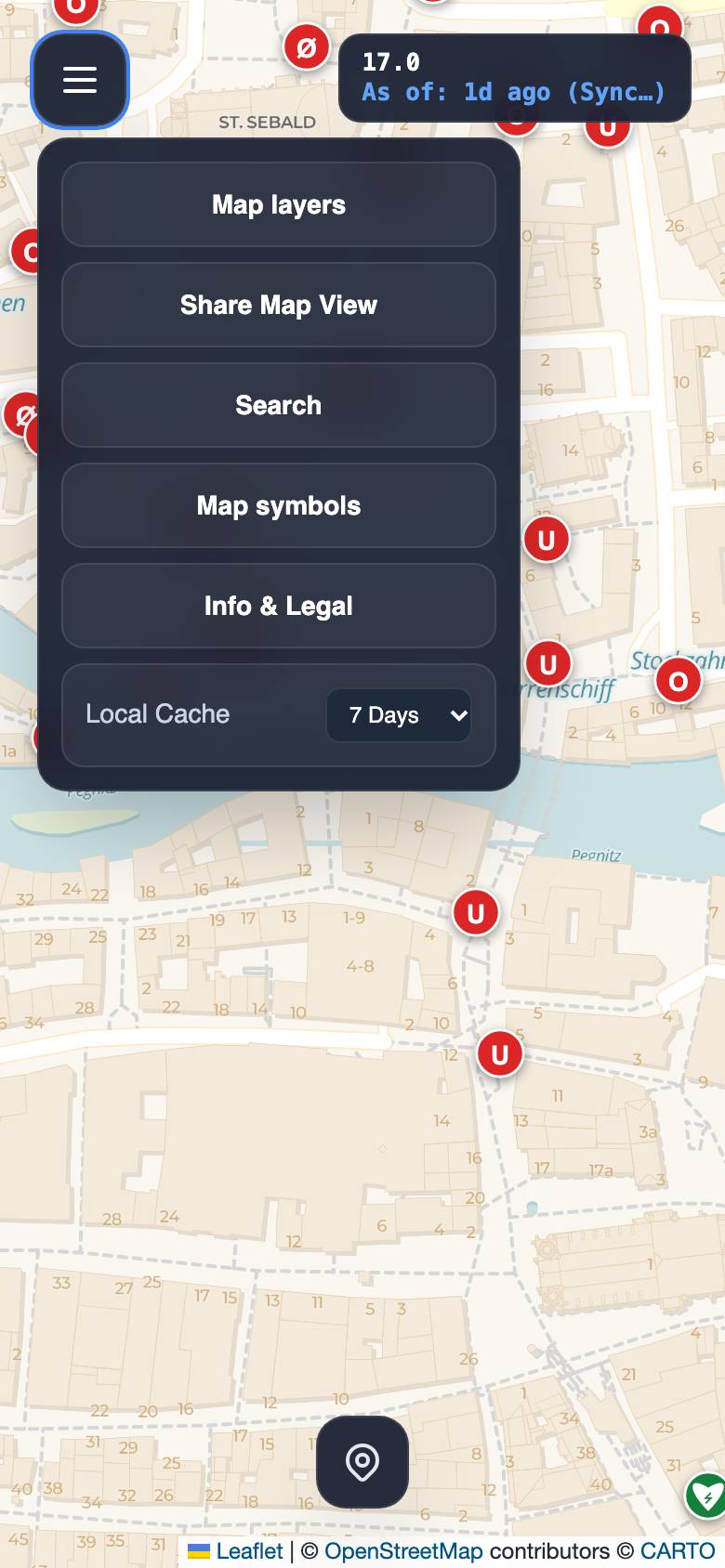
- Menu: opens all tools.
- Status box: zoom level and data date.
- Map layers: change the background.
- Share Map View: a link to this view.
- Search: find a place or address.
- Info & Legal: help, legal notice, privacy, licences.
- My location: jump to where you are.
The menu also has Map symbols (every symbol explained) and the local cache (how long loaded areas are kept).
OpenFireMap switches to this view on devices with a touchscreen or when the browser window is narrower than 1370 pixels. That is why tablets usually show the menu too.
Using your fingers
- Pan: drag with one finger.
- Zoom: pinch with two fingers, or double-tap.
- Tap a hydrant: from zoom level 16 a circle shows a 100 metre radius; after “My location”, from zoom level 17 also a line with the distance from you.
- Close: tap next to a menu.
Search and location
“Search” in the menu opens a search field above the map. After tapping “Go” the map jumps to the place.
The round button at the bottom centre shows your location and zooms to level 17. Your phone asks for permission the first time. Outdoors with GPS the position is usually accurate to a few metres.
Map layers
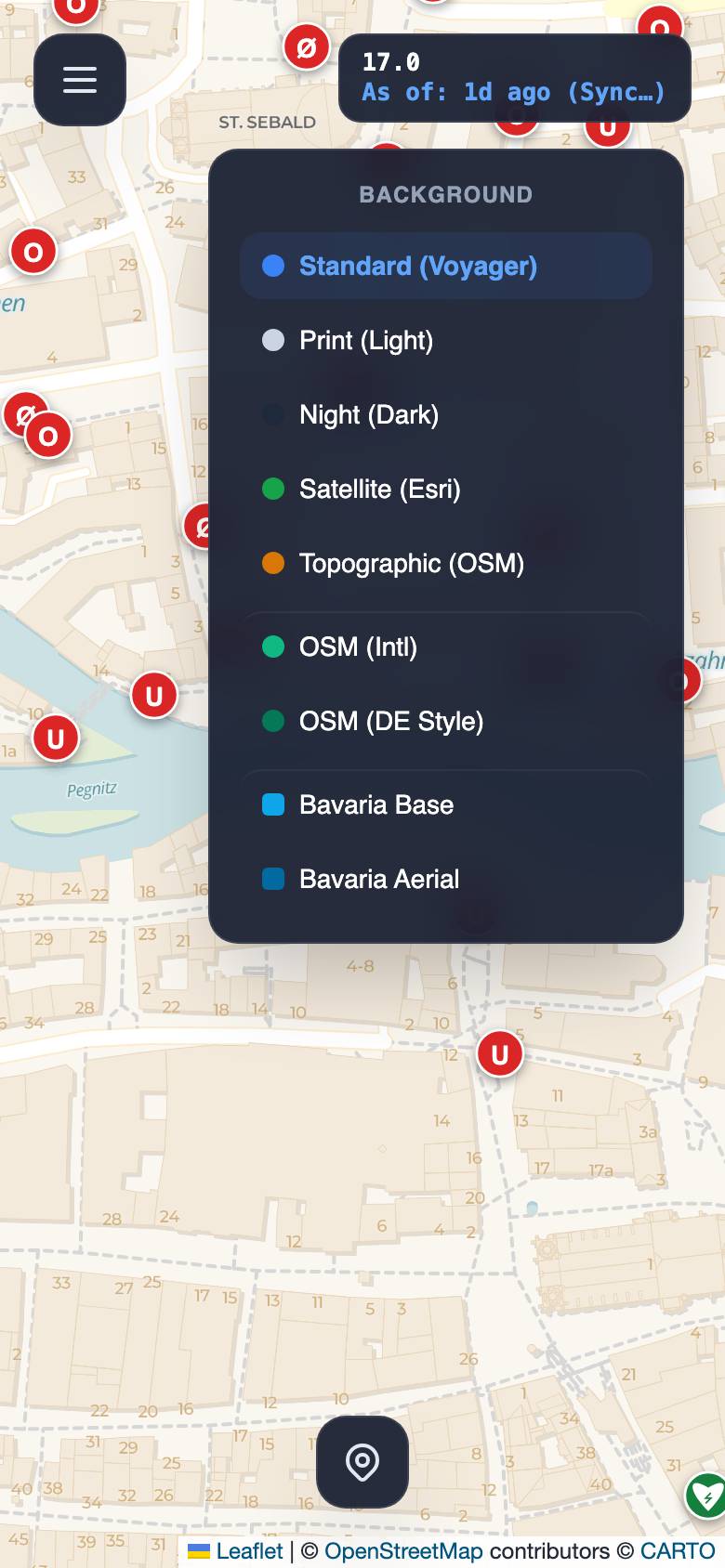
On site, Satellite often helps with orientation, and at night Night is easier on the eyes. Layers & symbols explains each background.
Status box
The top right shows zoom level and data date. Tapping the box opens “Data status & origin” with the source, the age of the data and the live update. It also links to the status page and to “Info & Legal”.
Start it like an app
OpenFireMap needs no installation. You can put the map on your home screen, though, and open it like an app without the browser bar.
- iPhone and iPad (Safari): open openfiremap.org, tap Share at the bottom, then choose Add to Home Screen.
- Android (Chrome): open openfiremap.org, tap ⋮ at the top right, then choose Install app or Add to Home screen.
Only on a computer
Export (PNG, PDF, GPX, CSV) and the town plan need a large screen for selecting the area and a lot of memory. Both are therefore only available on a computer. Open openfiremap.org on a PC or laptop. The share link lets you take your view from the phone along.
Your question is not here? Write to us: info@openfiremap.org
All topics